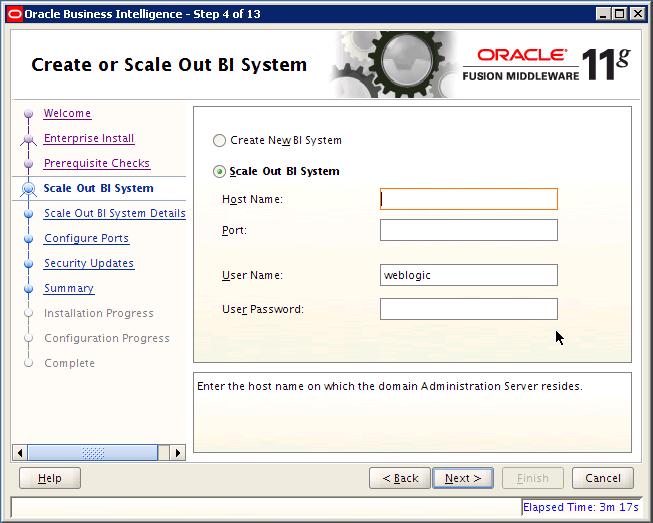
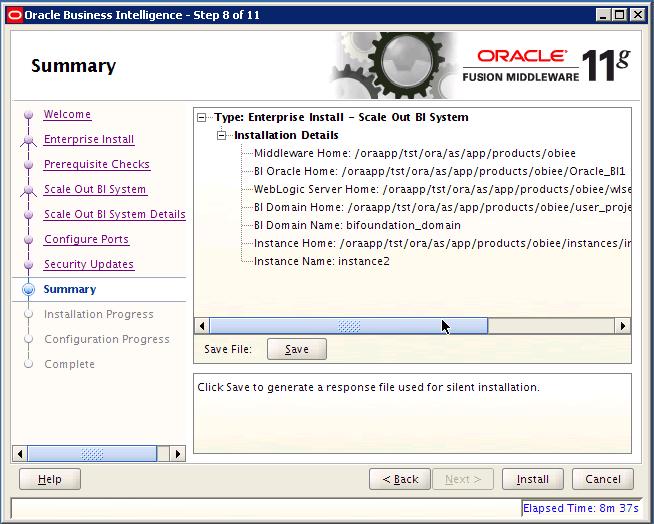
Setting up shared files and directories is an important step before thinking about vertical or horizontal scaling. The following components has to be places on the shared storage to take advantage of the scaling.
Oracle BI Repository File (RPD File)
Oracle BU Presentation Catalog
Global Cache
Before we start create the directories for the above three components on the shared storage.

Now in Fusion Middleware , go to the coreapplication of Business Intelligence Instance.
Under Deployment Tab , select Repository Tab
Update the Shared Location for both the Catalog and Repository
Oracle BI Repository File (RPD File)
Oracle BU Presentation Catalog
Global Cache
Before we start create the directories for the above three components on the shared storage.

Now in Fusion Middleware , go to the coreapplication of Business Intelligence Instance.
Under Deployment Tab , select Repository Tab
Update the Shared Location for both the Catalog and Repository

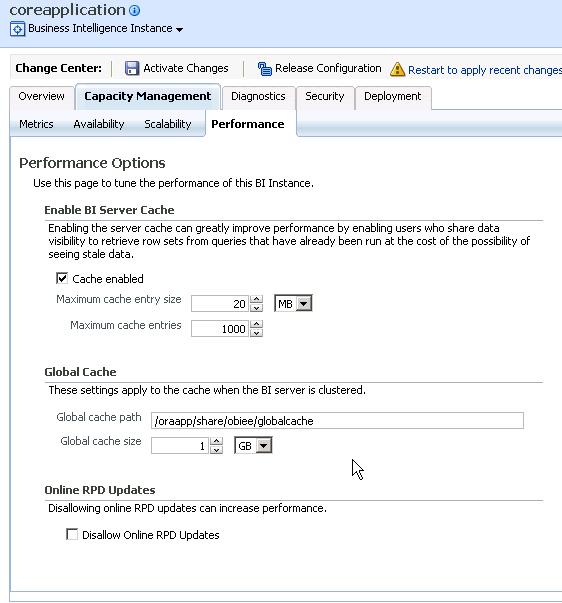
Now Update the Global Cache location also mention the cache size under the Performance Tab.
Restart the services to take effect.
We have completed the pre-requisite for adding processes to the scaled out system. Next we will see on activating the components on the second instance.